Use your founding code
Last checked October 22, 2026
The short answer
Open Billing in GroupSmarter, type the founding code from your email, and press Apply code, and your plan then shows Founding.
Why you have a code
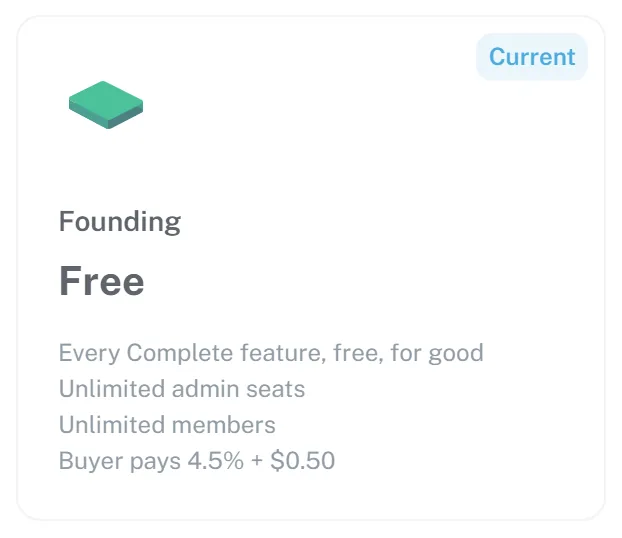
Your group was picked as one of our first ten founding groups. The code in your email turns that on. Your group then gets every Complete feature, free, for good.
The code works once, for one group. It belongs to your group, not to you, so it stays when your officers change.
How to use it
If your group is not on GroupSmarter yet, sign up first and pick the Free plan. You do not need a card. Then sign in as your group's owner.
-
Open your profile picture menu, choose Organization, then the Billing tab.

-
Find Have a founding code?, type the code from your email, and press Apply code.
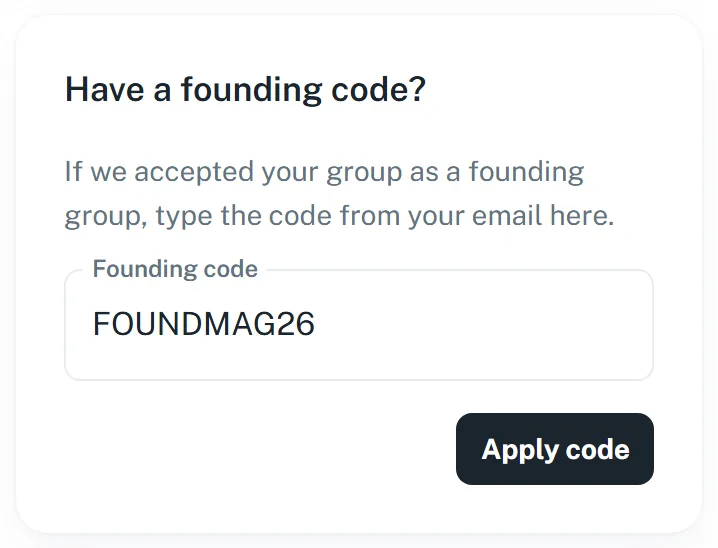
-
Your plan now says Founding. Your group has every Complete feature, free.
If the code does not work, check it against your email and try again. If it still does not work, reply to the email it came in.