Sort school PTO fundraiser orders by class
Last checked October 16, 2026
The short answer
Ask for the child's name and homeroom teacher on every item a family adds, then sort the orders by teacher so each class gets its own list.
Why a list by class makes handout day easy
When the shirts come in, they come in one big box. Teachers hand them out in class, so each teacher needs a short list of the children in that class who ordered, and what size.
If your order form asked only for the parent's name, someone has to match each parent to a child and each child to a class. That someone is usually you, the night before handout.
So ask while the family is ordering. The parent already knows the child's name and teacher, and typing them takes a few seconds. Ask for each item, not once per order. Then a parent buying for two children answers for each child in the same checkout, instead of paying twice.
How to sort the orders by class
Ask two questions for every item
Add these two questions to every item in your sale:
- Child's name
- Homeroom teacher
Use the same words on every item. A spreadsheet puts each question in its own column, so "Student name" on one item and "Child's name" on another end up in two columns.
If you can, let parents pick the teacher from a list instead of typing the name. Typed answers drift, and a spreadsheet sees "Mrs. Rivera" and "Mrs Rivera" as two teachers.
The spreadsheet way
- Put your orders in a spreadsheet with one row for each item. An order with two shirts for two children is two rows.
- Sort by the homeroom teacher column, then by the child's name.
- Print each teacher's rows, or copy them into a note for that teacher.
The GroupSmarter way
-
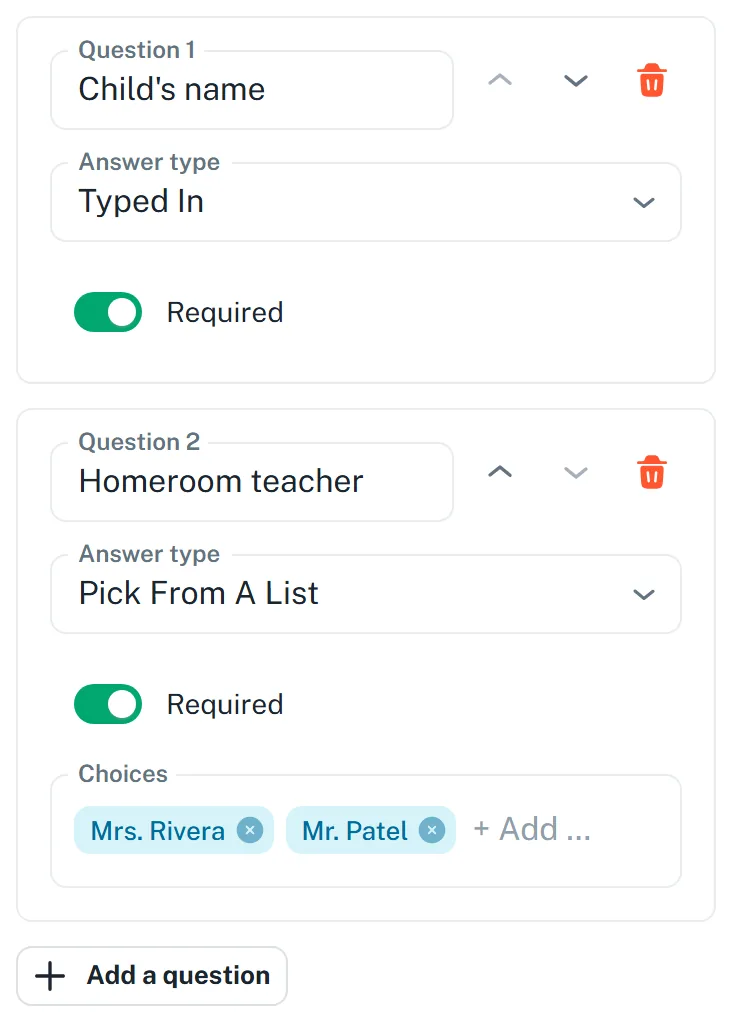
Open Product, then Create. Under Questions asked for each item, press Add a question once for each question, and leave Required on. For the teacher, set Answer type to Pick from a list, then in Choices type each teacher's name and press Enter.
-
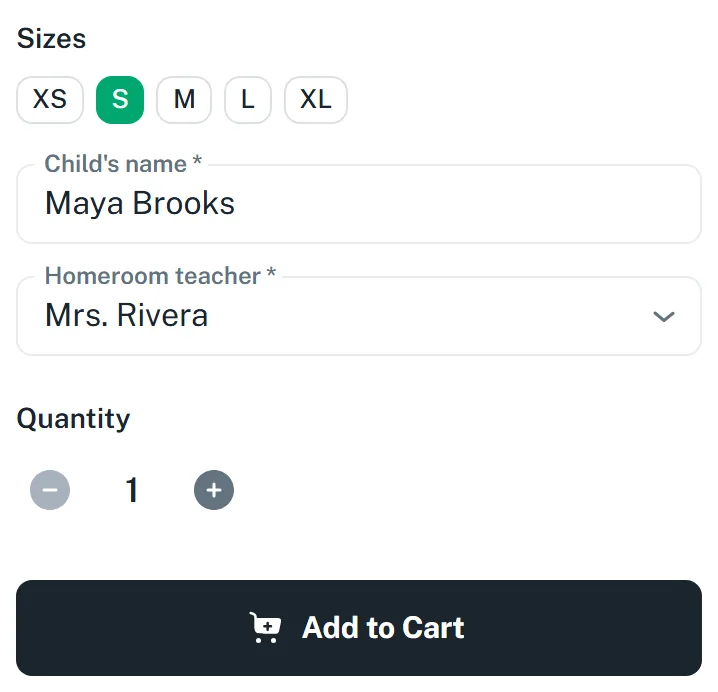
When a family adds the item, they answer both questions for that item. A parent buying for two children adds the item twice and answers for each child.
-
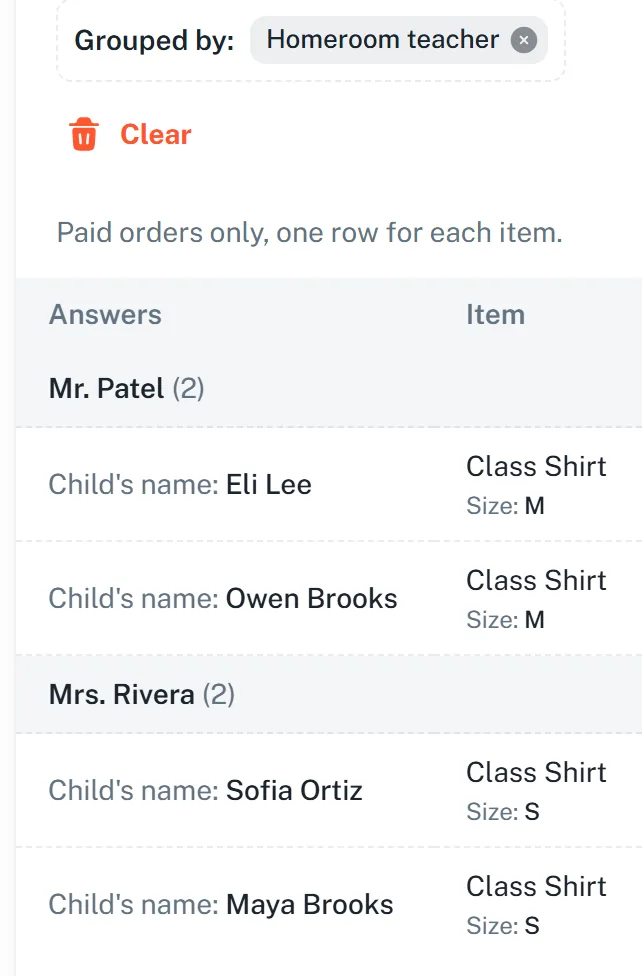
After the sale, open Orders, then List. In Group by, choose your teacher question. Each teacher gets a heading with a count for that class. Group by shows up once a paid order has an answer. For a very large sale, pick a Start date and an End date first.
-
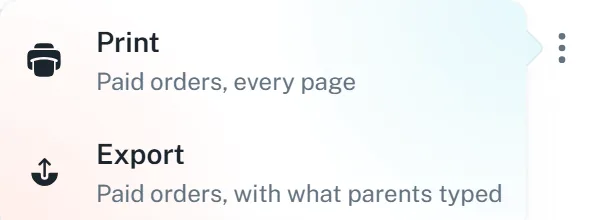
To give one teacher just that class, choose the teacher under Show. Then press More options (the ⋮ button) and choose Export for a spreadsheet, or Print.
Only your group's Owner or an Officer can see what parents typed, so one of them does this part. If your role is Treasurer, ask one of them. The class list and the export show paid orders only. A child whose family did not order is not on the list.
You can read more about how the GroupSmarter store works.
What a teacher's list looks like
This sample comes from a real export of test orders in our practice store, shortened to each child and size. The families are made up.
Mr. Patel (2)
- Eli Lee, size M
- Owen Brooks, size M
Mrs. Rivera (2)
- Sofia Ortiz, size S
- Maya Brooks, size S
Lena Brooks bought shirts for Owen and Maya in one checkout. They are in different classes, so each shirt lands on the right teacher's list.