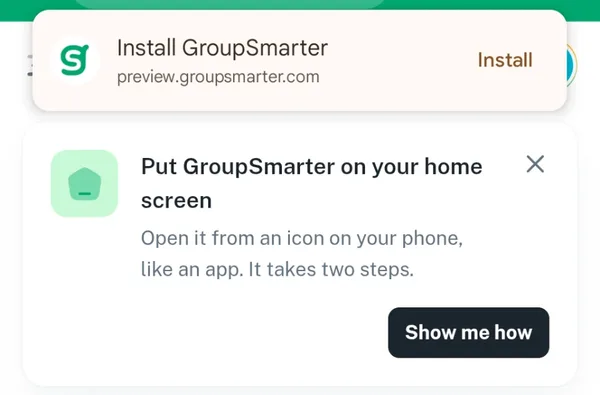
Put GroupSmarter on your home screen
Last checked October 1, 2026
The short answer
Open your dashboard on your phone, then use Add to Home Screen, and GroupSmarter opens from its own icon like an app.
Why it helps to put it on your phone
Most volunteers check on their group from a phone, often in a parking lot or between other errands. With GroupSmarter on your home screen, your dashboard is one tap away instead of buried somewhere in your browser tabs. It opens on its own, full screen, like any other app on your phone, so the address bar and your other tabs stay out of the way.
There is nothing to download from an app store, and nothing to update. You may need to sign in once the first time you open it.
How to add it
On an iPhone
- Open Safari, sign in, and go to your dashboard.
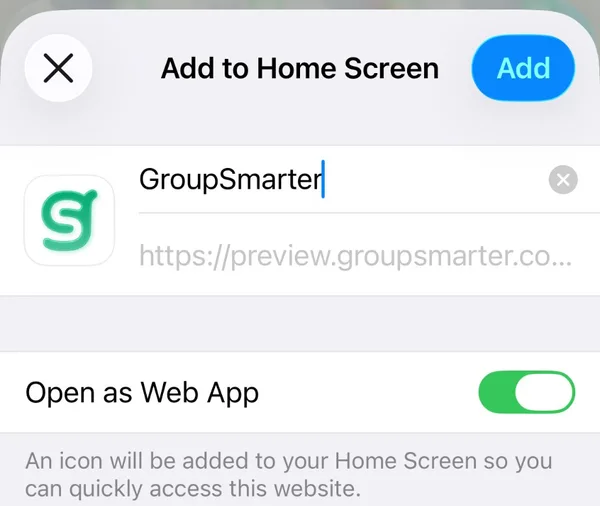
- Tap the ••• button, then Share, then View More, then Add to Home Screen. Leave Open as Web App turned on and tap Add. If your Safari has a Share button at the bottom of the screen, start with that one instead.
On an Android phone
- Open Chrome, sign in, and go to your dashboard.
- When Chrome shows Install GroupSmarter at the top of the screen, tap Install. If it does not, tap the ⋮ menu, then Add to Home screen, then Install.